
Change Location
Saved Locations
Saved Locations keep places and routes so you can quickly return to them later. They live in the panel under Presets, and each one can be renamed with the pencil (or a double-click) and removed with the ×.
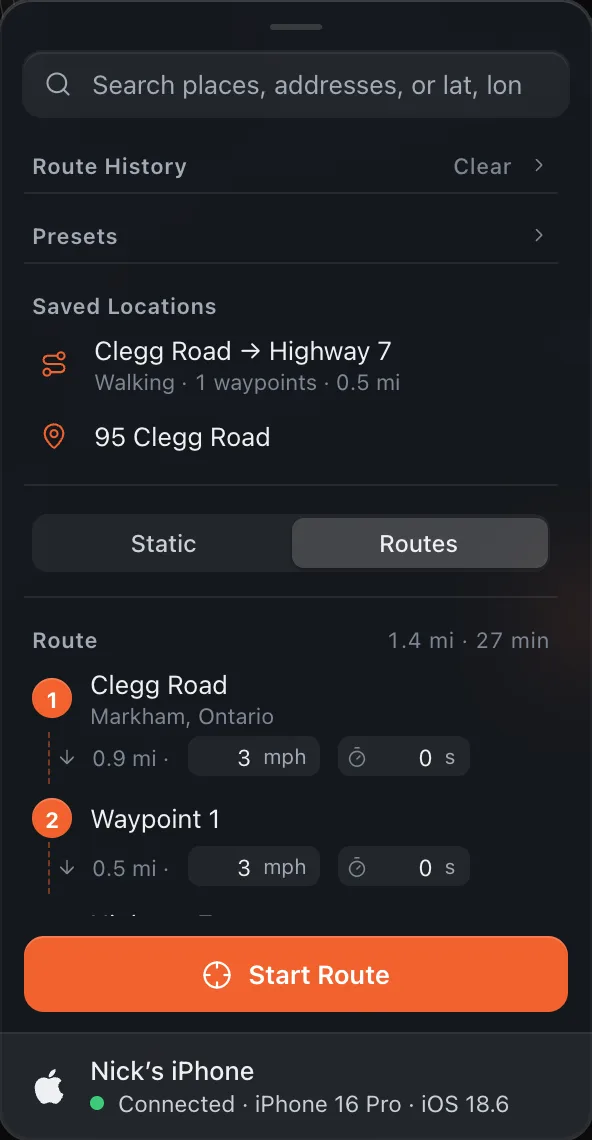
Saving a Location
- In Static mode, click the bookmark icon on the place card, give it a name (the address is the default) and press Save. The bookmark saves the map pin’s coordinates with that name.
- In Routes mode, click Bookmark under the route. The bookmark saves the full route configuration: start, end, waypoints, travel mode, the speed and pause of every leg, and the Stay at end and Loop settings.
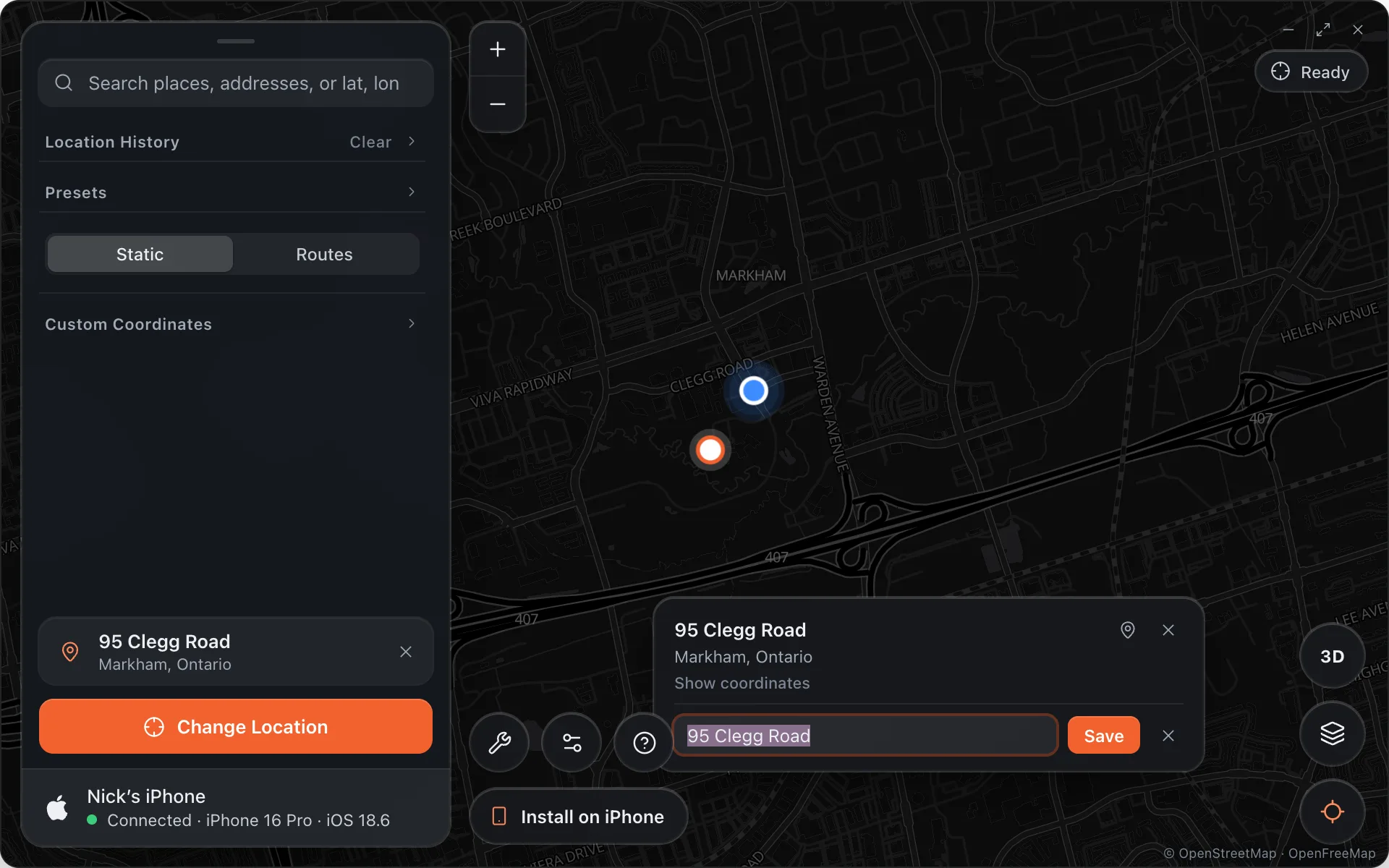
Loading a Saved Location
Click any bookmark to load it.
- Static bookmarks fly to the saved location and update the map pin. Press Change Location to go there.
- Route bookmarks restore the full route setup and switch to Routes mode if needed. Press Preview Route to recalculate the road path, then Start Route.
Renaming and Deleting
Hover a bookmark and click the × to remove it. Clicking the bookmark icon on a place card that is already saved removes that bookmark too.
Home and Work
The two Presets above the bookmarks are one-click bookmarks. Pick a place, hover the preset and click Set here; from then on clicking it selects that place.
Export and Import
Settings › Data › Export places writes bookmarks, history and presets to a JSON file; Import places reads one back, on the same Mac or another.